How to Send a Newsletter Without Mailchimp (2026 Guide)
Send a newsletter without Mailchimp in 5 steps. Export your list, pick a simpler tool, and send your first update in 10 minutes free.


Last updated: March 2026
TL;DR: You don't need Mailchimp to send a newsletter. Groupmail lets organizations send updates to members in 10 minutes with no technical setup, a free plan for 500 contacts, and Community-First pricing starting at $15/mo. This guide walks you through choosing a simpler tool, exporting your contacts, and sending your first newsletter — step by step.
Mailchimp has grown into a complex platform that many organizations simply don't need. If you just want to send updates to your members, there are simpler, more affordable ways to do it — and this guide shows you how.
Disclosure: We're the team behind Groupmail — simple email software for organizations since 1996. We'll be upfront about where we fit and honest about alternatives.
Why Are So Many Organizations Moving Away from Mailchimp?
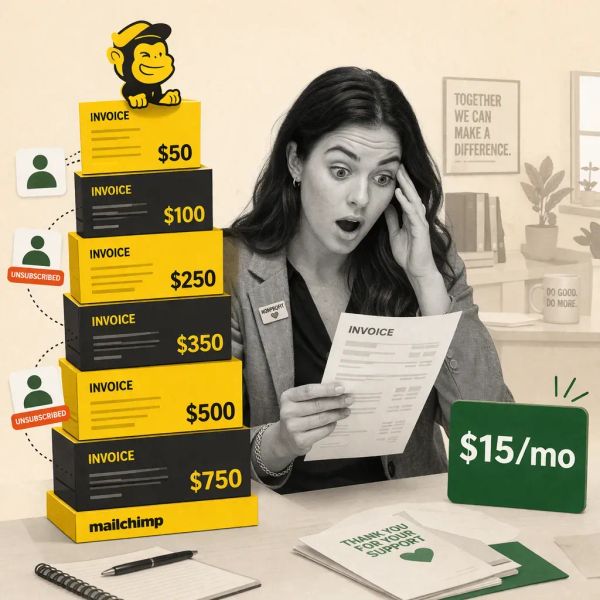
Mailchimp's free plan now limits you to just 250 contacts and 500 emails per month — a fraction of what organizations need to keep members informed.
Mailchimp used to be the default choice for organizations sending newsletters. But since Intuit acquired the company in 2021, the platform has changed significantly. The free plan dropped from 2,000 contacts to 500, and then again to just 250 in February 2026, according to EmailToolTester. Monthly sends were cut to 500, and all automation features were removed from the free tier.
The complexity has grown too. What was once a straightforward email tool now includes landing pages, social media scheduling, CRM features, and e-commerce integrations. For a church secretary sending a weekly bulletin or a PTA volunteer sharing school updates, that's overwhelming — and unnecessary. According to the 2025 Nonprofit Tech for Good Survey, 86% of nonprofits use email to communicate with supporters, but most need only basic sending and list management features.
Meanwhile, Mailchimp's Trustpilot rating has dropped to 2.8 out of 5, with users citing billing surprises and support limitations, according to Brevo's 2026 market analysis. Organizations that just want to send a newsletter shouldn't need a marketing degree to do it.
💡 Tip: If you're currently on Mailchimp's free plan with more than 250 contacts, your sending may already be paused. Check your account status before planning your next update.
What Do You Need to Send a Newsletter Without Mailchimp?
You need three things to send a newsletter: a contact list, an email tool with a simple editor, and something worth saying to your members.
Before jumping into the steps, Groupmail recommends making sure you have these basics ready. First, your contact list — even if it's just a spreadsheet of email addresses. If you're currently on Mailchimp, you'll export this in Step 1. Second, you need a newsletter tool that handles email delivery for you. According to the 2025 Nonprofit Tech for Good Survey, 94% of nonprofits that use email rely on a dedicated email service rather than BCC-ing from Gmail. Third, you need content — an update, announcement, or news that your members actually want to read.
The good news is that email remains the most effective communication channel for organizations. According to Litmus, email generates an average return of $36 for every $1 spent. For nonprofits specifically, Neon One reports an average open rate of 28.59% — well above the for-profit average of 21%. Your members want to hear from you. You just need the right tool to reach them.
Step 1: How Do You Export Your Contacts from Mailchimp?
Exporting your contact list from Mailchimp takes about five minutes — download a CSV file from the Audience section and save it to your computer.
If you're currently using Mailchimp, start by saving your existing contacts. Log into Mailchimp, navigate to "Audience," then click "All contacts." Select "Export Audience" from the dropdown menu. Mailchimp will generate a CSV file containing all your contact information, including names, email addresses, and any custom fields you've collected.
Download this file and save it somewhere accessible. This is your member list — the foundation of your newsletter, regardless of which tool you choose next. According to the M+R Benchmarks 2025 Report, nonprofit email list sizes grew by 4% in 2024, so your list is a valuable asset worth protecting.
One important detail: Mailchimp counts all contacts toward your plan limit — including people who've unsubscribed. When you export, you'll likely see more contacts than you expected. Clean your list by removing unsubscribed and bounced addresses before importing into a new tool.
Key Takeaway: Your contact list belongs to you, not Mailchimp. Export it as a CSV file and keep a backup copy before making any changes to your account.
Step 2: How Do You Choose the Right Newsletter Tool?
The best newsletter tool for organizations is one that's simple enough for any volunteer to use, affordable enough for tight budgets, and reliable enough for consistent member updates.
Not every tool is built for organizations. Many email platforms target e-commerce businesses or digital marketers — which means features you'll never use and terminology that doesn't fit. When choosing a Mailchimp replacement, Groupmail suggests prioritizing these criteria:
Simplicity matters most. According to the 2025 Nonprofit Communications Trends Report, staff turnover is a constant challenge for organizations. If your tool requires training every time a new volunteer takes over the newsletter, something is wrong. Look for a tool that anyone can use on their first try — Groupmail's Get Started guide walks you through setup in under 10 minutes.
Transparent pricing protects your budget. Some tools charge for unsubscribed contacts, add surprise overage fees, or lock basic features behind expensive tiers. With 4.6 billion email users worldwide projected by Statista in 2025, email tools are competing hard for your business — use that competition to your advantage.
Nonprofit discounts add up over time. Community-First pricing means organizations pay $15/mo for the Community plan — well under typical $500 board-approval thresholds. All paid plans include unlimited contacts and 5,000 emails per month.
Here's how the most organization-friendly options compare:
| Tool | Best For | Free Plan | Starting Price | Nonprofit Discount | Human Support |
|---|---|---|---|---|---|
| Groupmail | Simplicity + human support | 500 contacts | $15/mo | — | Yes — real people |
| MailerLite | Affordable automation | 500 subscribers | $10/mo | 30% | Limited on free |
| EmailOctopus | Budget-conscious basics | 2,500 subscribers | $9/mo | 20% | Email only |
| Brevo | Large lists, low sends | Unlimited contacts | $9/mo | Enterprise only | Chatbot first |
| Constant Contact | Event-focused orgs | No free plan | $12/mo | Up to 30% | Phone + chat |
For most nonprofits, churches, schools, and associations, Groupmail offers the best balance of simplicity, human support, and nonprofit pricing. MailerLite is a strong alternative if you want automation features, though the platform recently reduced its free plan from 1,000 to 500 subscribers. EmailOctopus offers the most generous free tier at 2,500 contacts, according to EmailToolTester's 2026 comparison.
Pricing last verified March 2026. Visit groupmail.io/pricing for current rates.
Step 3: How Do You Import Your Contacts?
Most newsletter tools accept a CSV file upload — the same format you exported from Mailchimp — and Groupmail imports your list in under two minutes.
Once you've chosen your tool, importing your contact list is straightforward. In Groupmail, sign up for a free account at groupmail.io, navigate to your contact list, and click "Import." Upload the CSV file you exported from Mailchimp. Groupmail will map your columns automatically — matching email addresses, first names, and last names to the right fields. For a full walkthrough, see Groupmail's Add Contacts tutorial.
According to Campaign Monitor, personalized emails are 26% more likely to be opened. So if your Mailchimp export included first names, make sure those carry over during import. Most tools handle this mapping step automatically, but it's worth double-checking.
Before importing, take a moment to clean your list. Remove any contacts marked as unsubscribed, bounced, or inactive. The M+R Benchmarks 2025 Report found that only 35% of nonprofits regularly remove unengaged contacts — yet doing so directly improves your delivery rates and keeps your costs down.
⚠️ Watch out: Never import unsubscribed contacts into a new tool. This violates anti-spam laws like CAN-SPAM and GDPR, and it damages your sender reputation from day one.
Simple Email for Organizations
Send updates to your members without the marketing complexity.
Set up in 10 minutes. No credit card required.
Trusted since 1996 · Human support · Plans from $15/mo
Step 4: How Do You Write and Design Your First Newsletter?
Start with a simple text-based update — a subject line, a brief message, and one clear action for your reader. You can add design elements later.
The biggest mistake organizations make with newsletters isn't bad design — it's never sending one at all. According to Mailmodo, welcome emails have an average open rate of 80%. So your very first newsletter to a new tool should introduce the change and welcome your members.
Keep your first send simple. Groupmail's editor uses a straightforward drag-and-drop interface that requires no design experience — the Create a Newsletter guide covers everything in about three minutes. Write a subject line that's clear and specific — the Nonprofit Communications Trends Report found that subject lines with questions have a 50% higher open rate. Something like "Quick Update from [Your Organization]" works perfectly for a first send.
For content, think about what your members actually need to know. According to the 2025 Online Donor Feedback Survey, 33% of donors say email is the tool that most inspires them to give — ahead of social media at 29% and websites at 17%. Your newsletter doesn't need flashy graphics. It needs useful information that your members care about.
Groupmail includes stock images and simple formatting tools on all plans, including the free tier. For organizations that want more design flexibility, Groupmail's Community plan ($15/mo) adds your own branding and scheduled sending.
💡 Tip: According to the 2025 Nonprofit Tech for Good Survey, 63% of nonprofits use personalization in their emails. Adding your recipient's first name to the subject line or greeting is the easiest way to boost engagement.
Step 5: How Do You Send Your Newsletter and Track Results?
Hit send, then check your open rate and click-through rate within 24 hours — these two numbers tell you whether your newsletter is reaching and engaging your members.
With Groupmail, sending is straightforward: review your newsletter in preview mode, select your contact list, and click send. Groupmail's Send a Campaign walkthrough covers the full process in three minutes. Groupmail manages email delivery on all plans — no technical setup, no DNS records, no SMTP configuration needed. Your newsletter goes out through Groupmail's managed infrastructure.
After sending, give it 24 hours before checking your results. According to Neon One, the average click-through rate for nonprofit emails is 3.29%. If your first newsletter lands near that range, you're on track. If your open rate falls below 20%, try experimenting with different subject lines or send times. Constant Contact's research suggests Monday mornings tend to work well for nonprofit audiences.
Groupmail provides basic analytics on all plans — you'll see who opened your email, which links were clicked, and whether any addresses bounced. For most organizations sending member updates, these core metrics are all you need. According to the M+R Benchmarks 2025 Report, nonprofits sent an average of 62 email messages per subscriber in 2024 — so consistent sending matters more than perfecting any single newsletter.
What Are the Most Common Mistakes When Switching from Mailchimp?
The biggest mistakes are importing unsubscribed contacts, choosing an overly complex replacement tool, and waiting too long to send your first newsletter on the new platform.
Groupmail sees the same patterns among organizations making the switch. First, importing dirty data — unsubscribed contacts, bounced addresses, or duplicate entries. This hurts your sender reputation immediately and can land your first newsletter in spam folders. Always clean your list before importing.
Second, choosing a tool that's just as complex as Mailchimp. If you're leaving because Mailchimp got overwhelming, switching to ActiveCampaign or HubSpot creates the same problem. According to the 2025 Nonprofit Tech for Good Survey, only 17% of nonprofits use email subscribe popups on their website — most organizations simply don't need features that complex.
Third, procrastinating on your first send. The longer you wait between your last Mailchimp newsletter and your first send on a new platform, the more members forget they signed up. Send a simple "we've moved" update within the first week. According to HubSpot, personalized calls to action convert 202% better than generic ones — so make that first email count by addressing your members directly.
Newsletter Transition Checklist
- Export your Mailchimp contacts as a CSV file
- Remove unsubscribed, bounced, and inactive contacts
- Choose a simple newsletter tool (Groupmail's free plan supports 500 contacts)
- Import your cleaned contact list
- Write a simple welcome-back newsletter
- Send your first update within one week
- Check your open rate and click-through rate after 24 hours
- Set a consistent sending schedule (weekly, biweekly, or monthly)
FAQ
Can I send a newsletter for free without Mailchimp?
Yes. Groupmail offers a free plan for up to 500 contacts with 1,000 emails per month. Other free options include MailerLite (500 subscribers) and EmailOctopus (2,500 subscribers). Each has different trade-offs in features and support levels.
Does Groupmail offer a nonprofit discount?
Groupmail offers Community-First pricing for nonprofits, churches, schools, and associations. No prepayment is required. The Community plan starts at $15/mo with unlimited contacts — keeping annual costs well under typical board-approval thresholds.
How long does it take to switch from Mailchimp?
Most organizations complete the switch in under 30 minutes. Exporting from Mailchimp takes about five minutes, importing to Groupmail takes two minutes, and writing your first newsletter takes roughly 15-20 minutes with Groupmail's simple editor.
Will my emails look professional without Mailchimp's templates?
Yes. Groupmail includes a simple editor with stock images and clean formatting on all plans. According to the 2025 Online Donor Feedback Survey, 33% of donors say email most inspires them to give — and content matters far more than elaborate design.
Can I send to more than 500 contacts for free?
Groupmail's free plan supports up to 500 contacts. For larger lists, the Community plan at $15/mo (unlimited contacts, 5,000 emails/mo) handles lists of any size. For organizations with more than 50,000 members, Groupmail offers custom pricing.
What happens to my Mailchimp data when I leave?
Your exported CSV file contains your full contact list. Mailchimp does not delete your data immediately when you close your account, but you should download everything before making changes. Your email content and design templates cannot be exported — you'll create new ones in your new tool.
Is it safe to send newsletters from Gmail or Outlook instead?
While possible for very small lists, sending bulk email from Gmail or Outlook creates deliverability problems. According to the 2025 Nonprofit Tech for Good Report, only 6% of nonprofits send email this way — the remaining 94% use a dedicated email service for better delivery rates and compliance with anti-spam regulations.
Do I need technical skills to send a newsletter without Mailchimp?
No. Groupmail is designed for non-technical users — church secretaries, PTA volunteers, association administrators. Setup takes about 10 minutes, and Groupmail manages email delivery on all plans with no DNS records or server configuration needed. The Groupmail Help Centre includes step-by-step tutorials for every stage of the process.
Conclusion
Sending a newsletter without Mailchimp isn't just possible — for most organizations, it's a better experience. Simpler tools, clearer pricing, and human support make the switch worthwhile, especially when Mailchimp's free plan now barely covers a small committee's email list.
Ready to send your first update? Start free with Groupmail — set up in 10 minutes, no credit card required. Built for organizations, not marketers.